
You'll get your login details from the Escape team during onboarding — an email invitation with a link to set your password.
Logging in on the web
- Go to app.escapefieldops.com (it's also linked in your welcome email).
- Enter your email and the password you set — or use Sign in with Google if your work email is a Google account.
- Bookmark the page — this is your Escape home base on a computer.
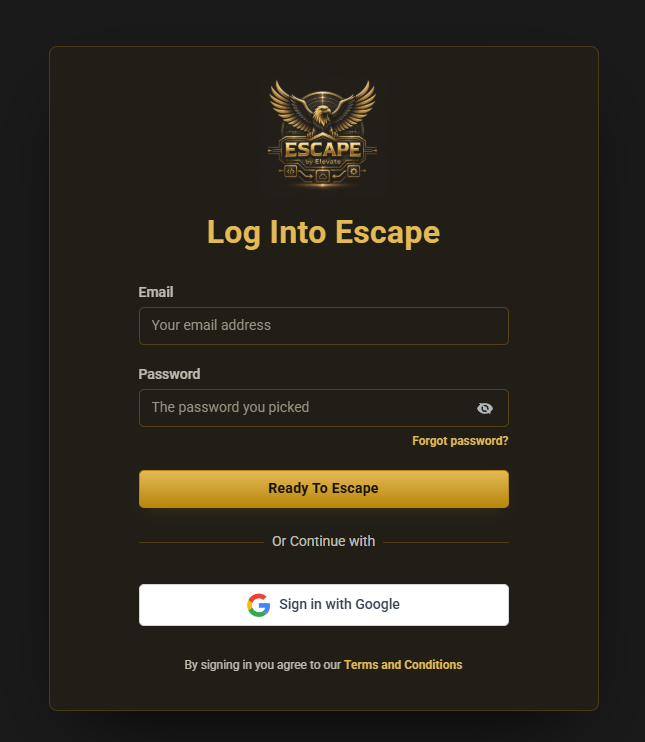
Forgot your password? Use the "Forgot password" link on the login screen. A reset email goes to the address on your account. If it doesn't arrive within a few minutes, check spam, then contact support.
Escape on your computer (the desktop app)
You can run Escape in its own window, with its own icon on the taskbar, instead of hunting for the right browser tab.
The reason to bother is notifications. The desktop app can put a notification on screen the moment a new message or a missed call comes in — even when your browser is buried behind something else. For whoever watches the inbox, that is the difference between answering a new lead in two minutes and finding it an hour later.
Everything inside is identical to the web. Same data, same screens — it is the same Escape in a dedicated window.
Signing in takes two screens, and that is normal
- Open the Escape app. You get a dark screen with a Sign in to Escape by Elevate button.
- Click it — your browser opens at the usual login page, app.escapefieldops.com.
- Sign in there exactly as you normally would. The app brings you straight back, signed in.
The first screen belongs to the app itself; the second is the same login page you already use on the web. You only do this once — after that the app remembers you.
Getting it: [PLACEHOLDER - desktop app installer link, add once the build finishes]. If you do not have it, ask the Escape team.
Not getting notifications? Allow notifications for Escape in your computer’s own notification settings first — that permission sits outside Escape and blocks everything until it is granted. Then check the app’s own settings.
The mobile app
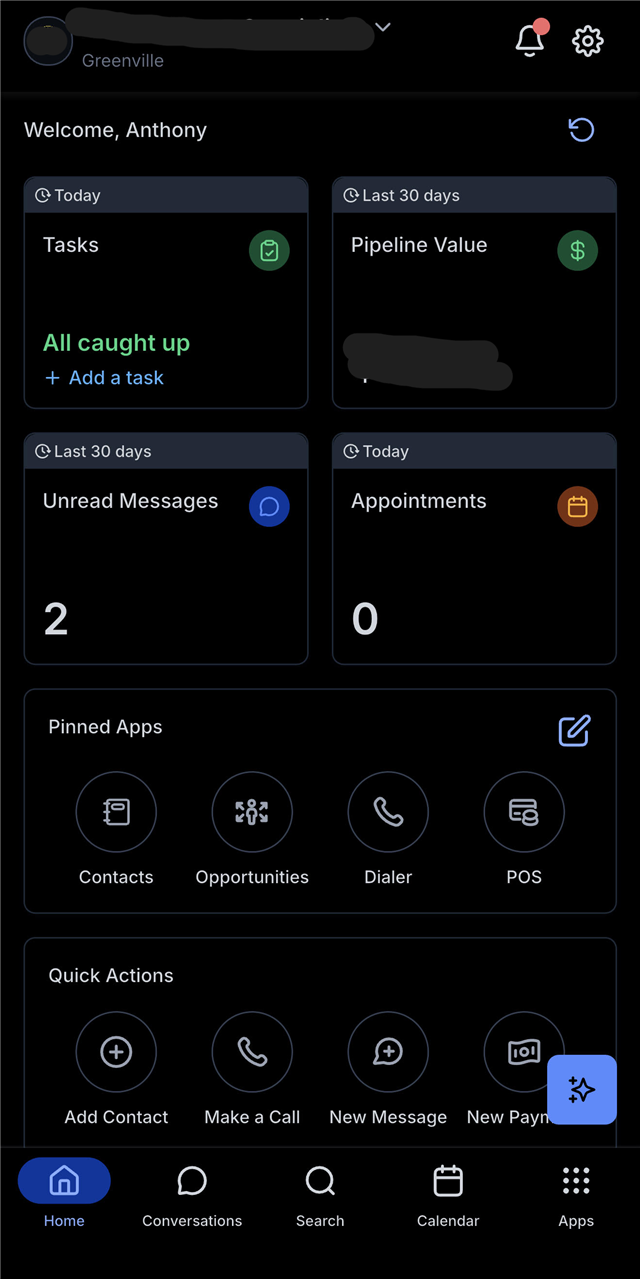
Techs live in the mobile app — appointments, conversations, and collecting payment, all from the truck.
- Download the Escape mobile app using the link in your welcome email (it's also in your quick-start guide).
- Sign in with the same email and password as the web.
Finding your way around
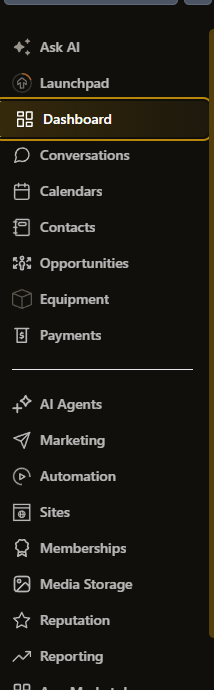
What you see depends on your role — see Who sees what — but the main areas are:
- Conversations — every call, text, email, and Google message, in one inbox. Start here every morning.
- Contacts — your customer list. Every customer's history, messages, and appointments in one place.
- Calendars — the schedule. Who's going where, and when.
- Opportunities — the dispatch board. Every job as a card, moving through stages from Needs Scheduled to Done.
- Payments — invoices and transactions (owner and office).
First-day tips
- Owners: open the dashboard first. It's your business at a glance.
- Office: live in Conversations and the dispatch board. That's the whole day-to-day.
- Techs: the app shows your appointments and your conversations — nothing you don't need.