
Plans change. A customer calls to move their slot, a tech calls in sick, a job runs long. Here's how your office keeps the calendar honest.
Rescheduling an appointment
- Open the appointment — from the calendar or from the job card.
- Pick the new date and time (and a different tech, if needed).
- Save.
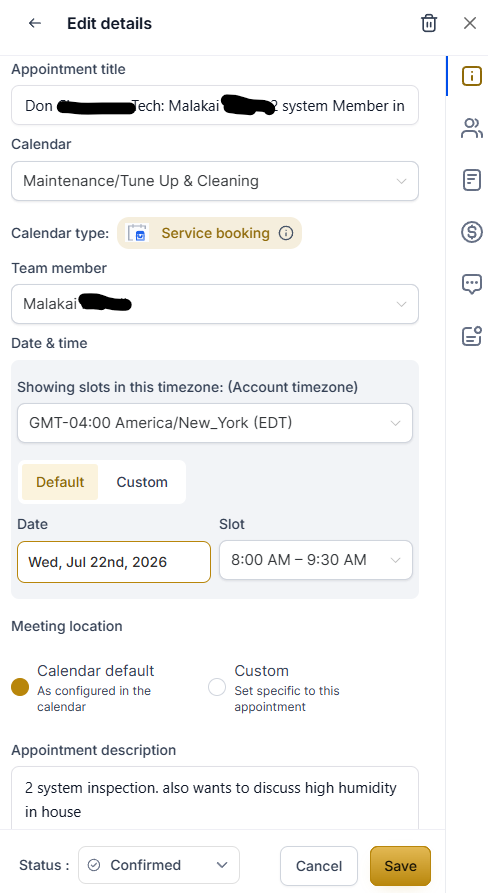
The customer's reminders adjust to the new time automatically — the day-before and morning-of texts will show the new time when they fire. You don't need to re-send anything.
One good habit: the customer doesn't get an instant "your appointment moved" text the moment you reschedule, so drop a quick note in their conversation — "Got you moved to Thursday at 2!" — and they're never left wondering.
Cancelling an appointment
Open the appointment and cancel it. The job card on the dispatch board moves to Cancelled so the day's board stays true. If the work still needs to happen later, reschedule instead of cancelling — the job keeps its history.
Assigning and reassigning techs
Every appointment belongs to a tech, and that assignment drives everything downstream: whose calendar it's on, whose app it shows in, who the on-the-way text talks about.
To move a job to a different tech, edit the appointment and change the assigned team member. The job and its notifications follow.
Sending two techs? That's a slightly different flow — see Two-tech (crew) jobs.
Appointment status — you don't have to touch it
Every appointment carries a status, and Escape moves it for you.
A new booking comes in as Confirmed. When the job is marked Done on the dispatch board, the appointment flips to Showed automatically as part of the close-out.
That one status is worth understanding, because it is what your calendar reporting counts. If every appointment sat at Confirmed forever, you would have no way to see how many booked jobs actually happened — and last month's finished work would look identical to next week's. Moving the job through the board is what keeps that honest.
The only status your office sets by hand is a no-show. If the customer isn't there, mark the appointment No Show — nothing infers that for you, and it is the number worth watching.
Who can do this
Owners and office staff manage the calendar — booking, moving, cancelling, and assigning.
Techs can see their own appointments and everything about them — time, address, customer, and notes — but they don't reschedule or reassign. That's deliberate: the schedule stays in one set of hands, so two people never move the same job in opposite directions. When a customer asks a tech to move a visit, the tech tells the office and the office moves it. See Who sees what.
Good habits
- Reschedule, don't cancel-and-rebook. The history stays cleaner and the customer gets fewer confusing messages.
- Answer the reply thread. Most reschedule requests arrive as replies to reminders — they're sitting in your inbox.